MuditaOS K 1.6.0 rollout is paused while we finish a hotfix. Read the update on the forum

How do I install third-party apps with Mudita Center?

Updated 28 Sep 2026
Short answerConnect your Kompakt to Mudita Center, go to Manage Files > App installers, add your .apk file, then click it and accept the installation risk.
  1. Open Mudita Center and connect your device.
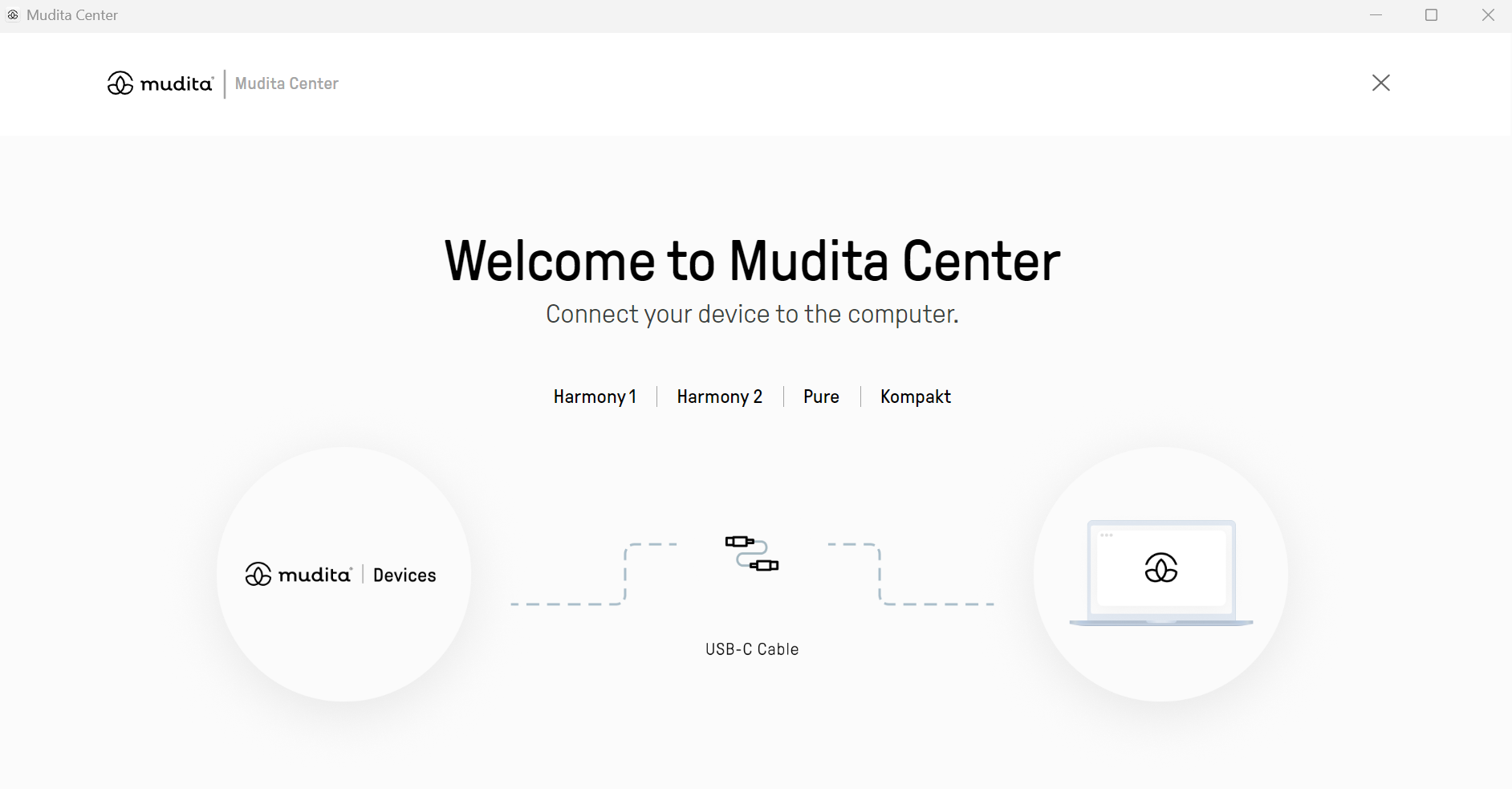
    Mudita Center welcome screen asking you to connect your device to the computer
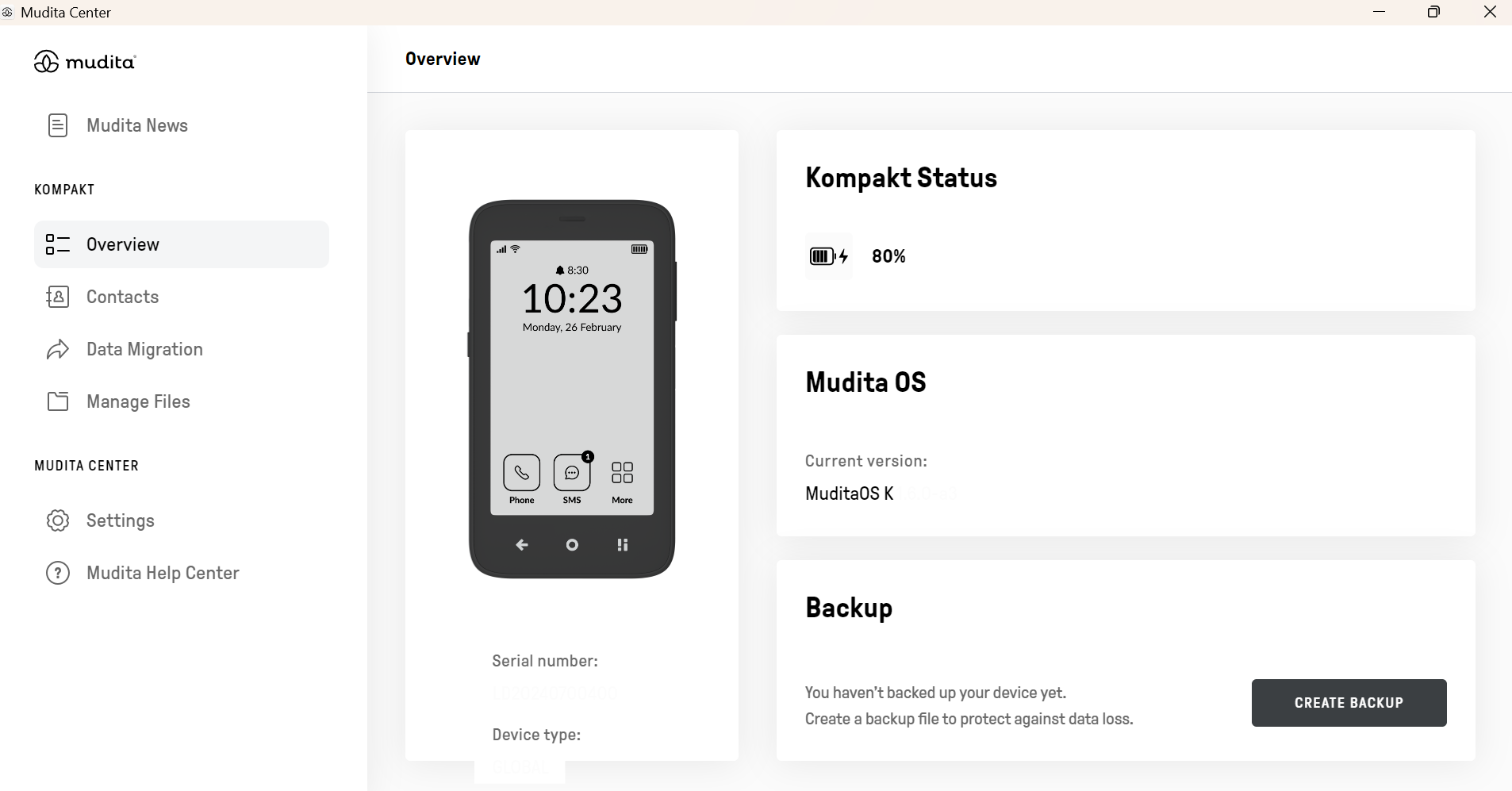
    Mudita Center Overview screen for a connected Kompakt, with Manage Files in the menu on the left
  2. Look under Your Kompakt > Click Manage Files.
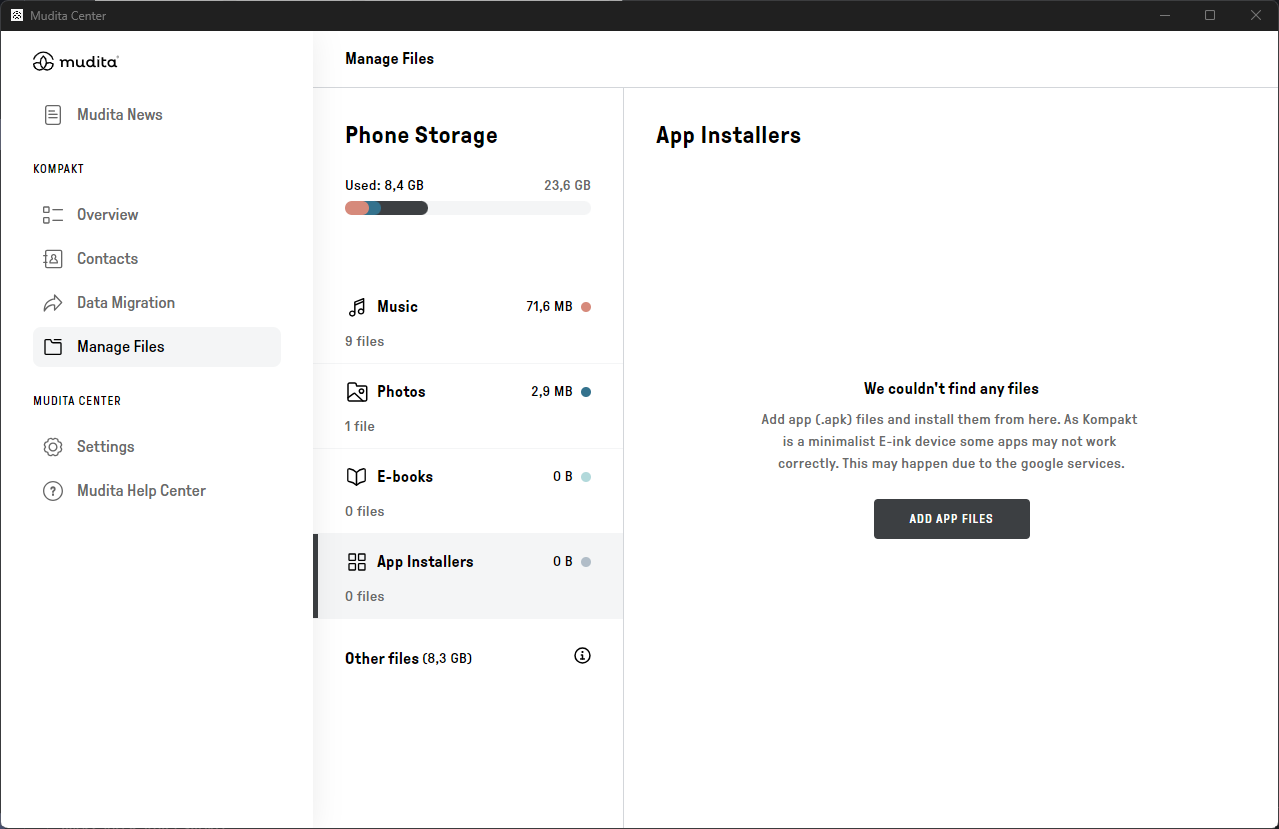
  3. Click App installers.
    Manage Files screen with App Installers selected and the Add App Files button
  4. Click Add file.
  5. Browse and select your .apk files to upload.
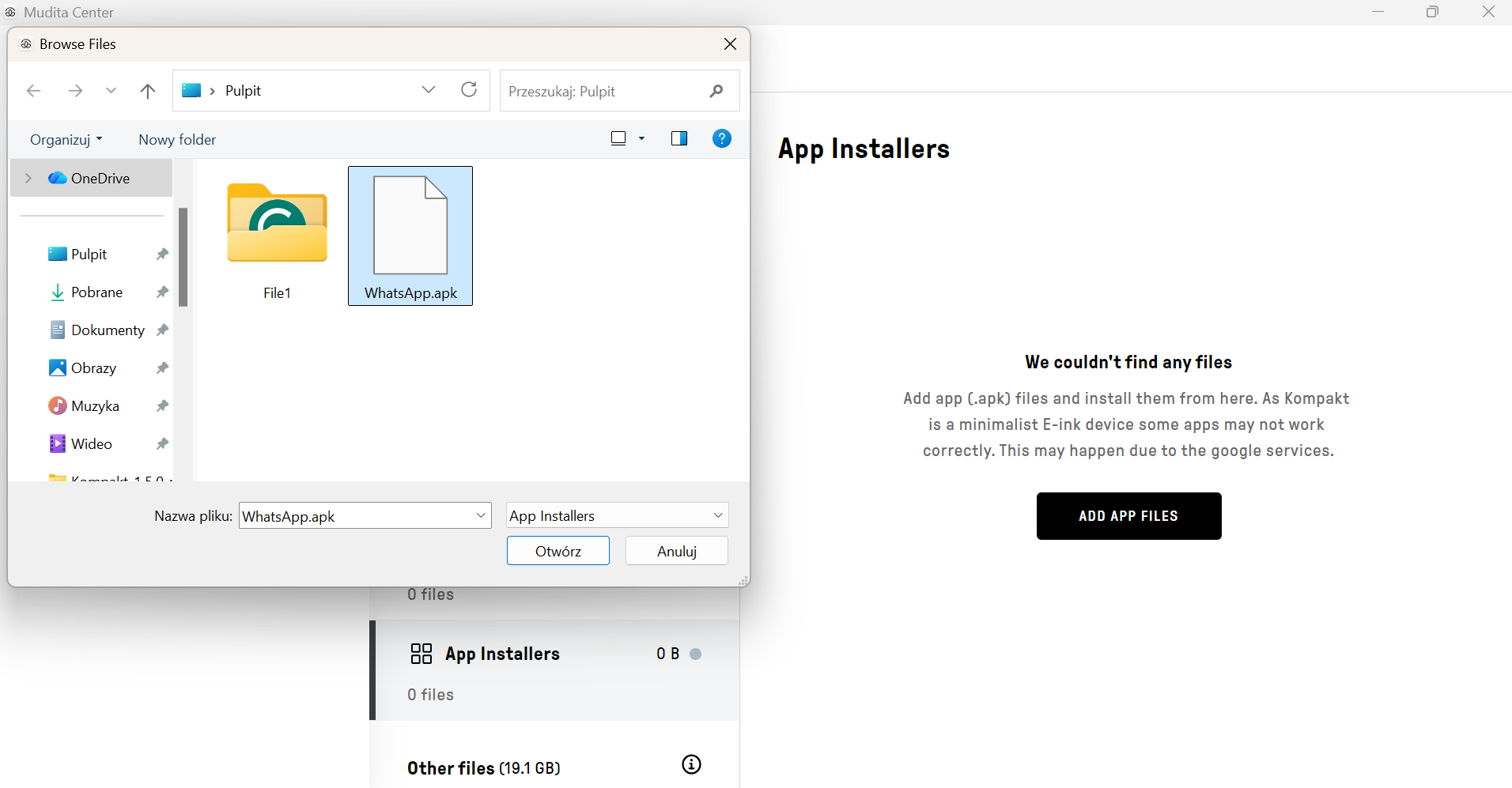
    File browser window with an APK file selected
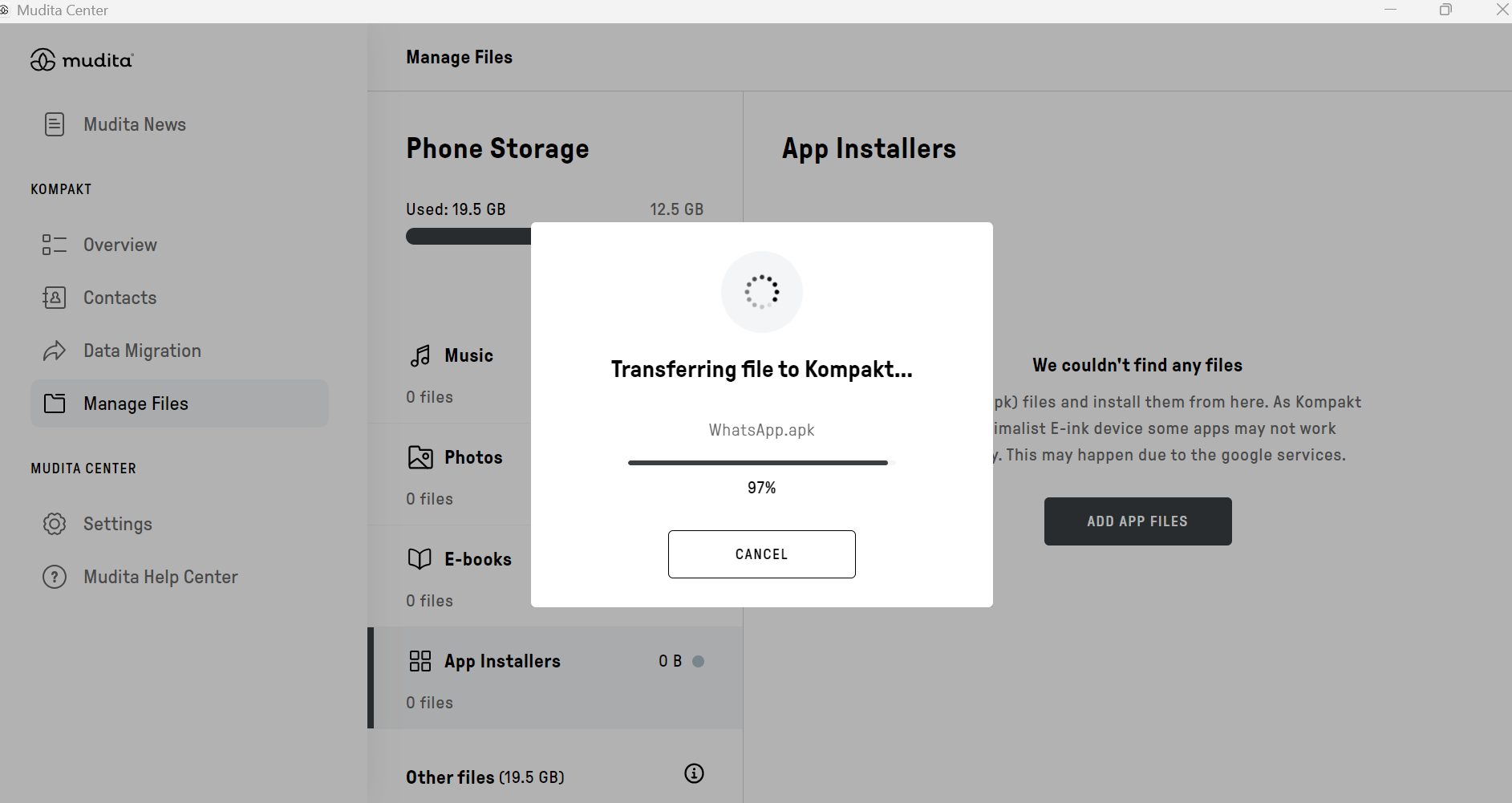
  6. Confirm the transfer to Kompakt.
    Transferring file to Kompakt window with a progress bar
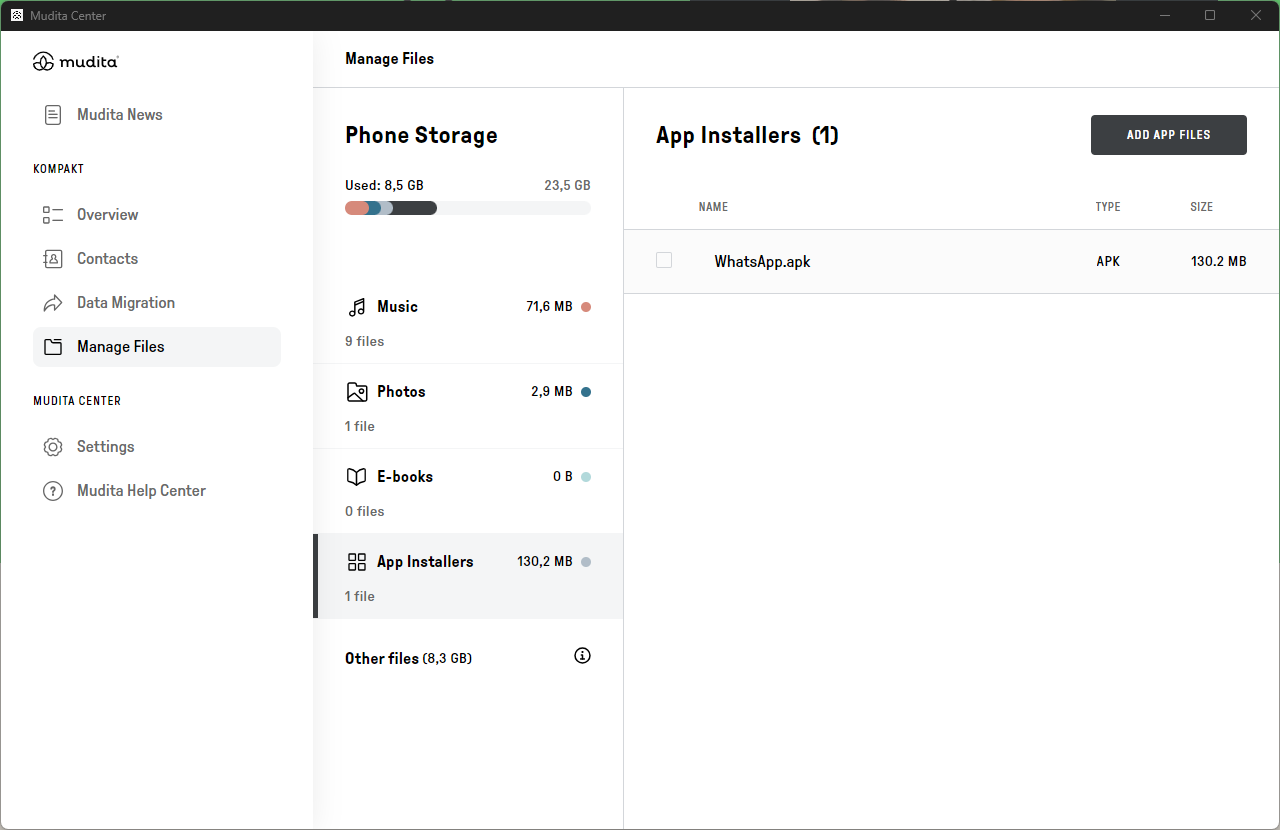
  7. Click on the .apk file.
    App Installers list showing the uploaded APK file
  8. Accept the risk of installation and confirm it.
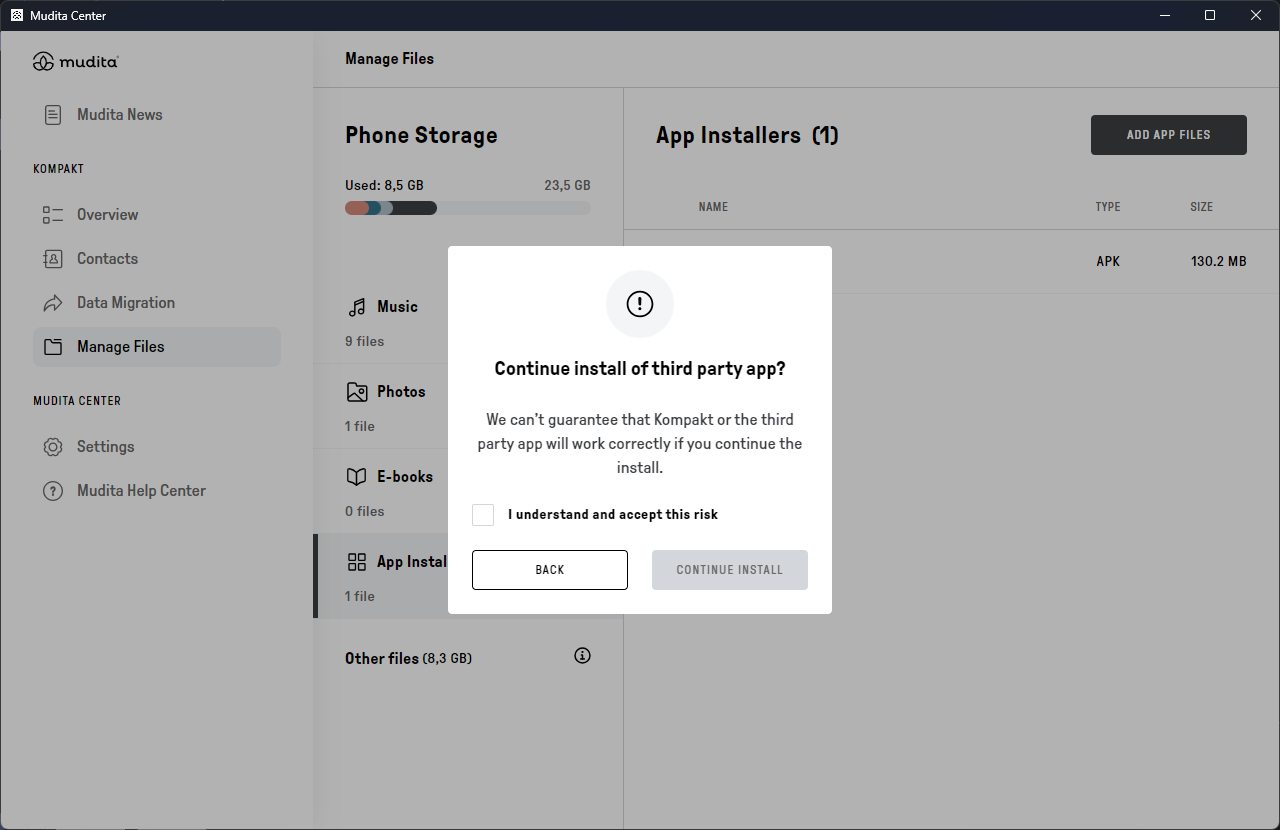
    Continue install of third party app window with the I understand and accept this risk check box and the Continue Install button
  9. Installation complete. You can now close this window and start using the app on your Kompakt.
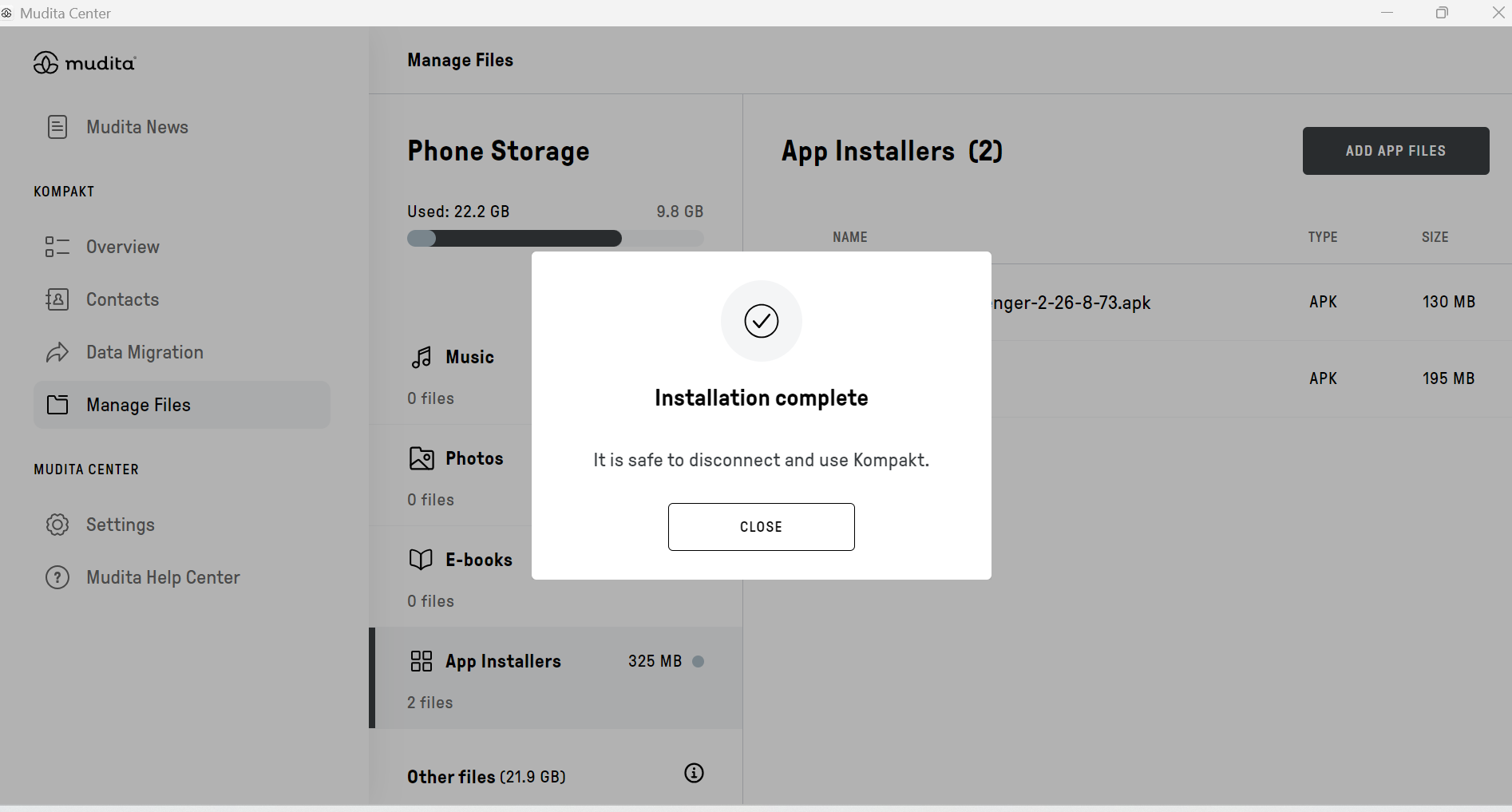
    Installation complete message in Mudita Center
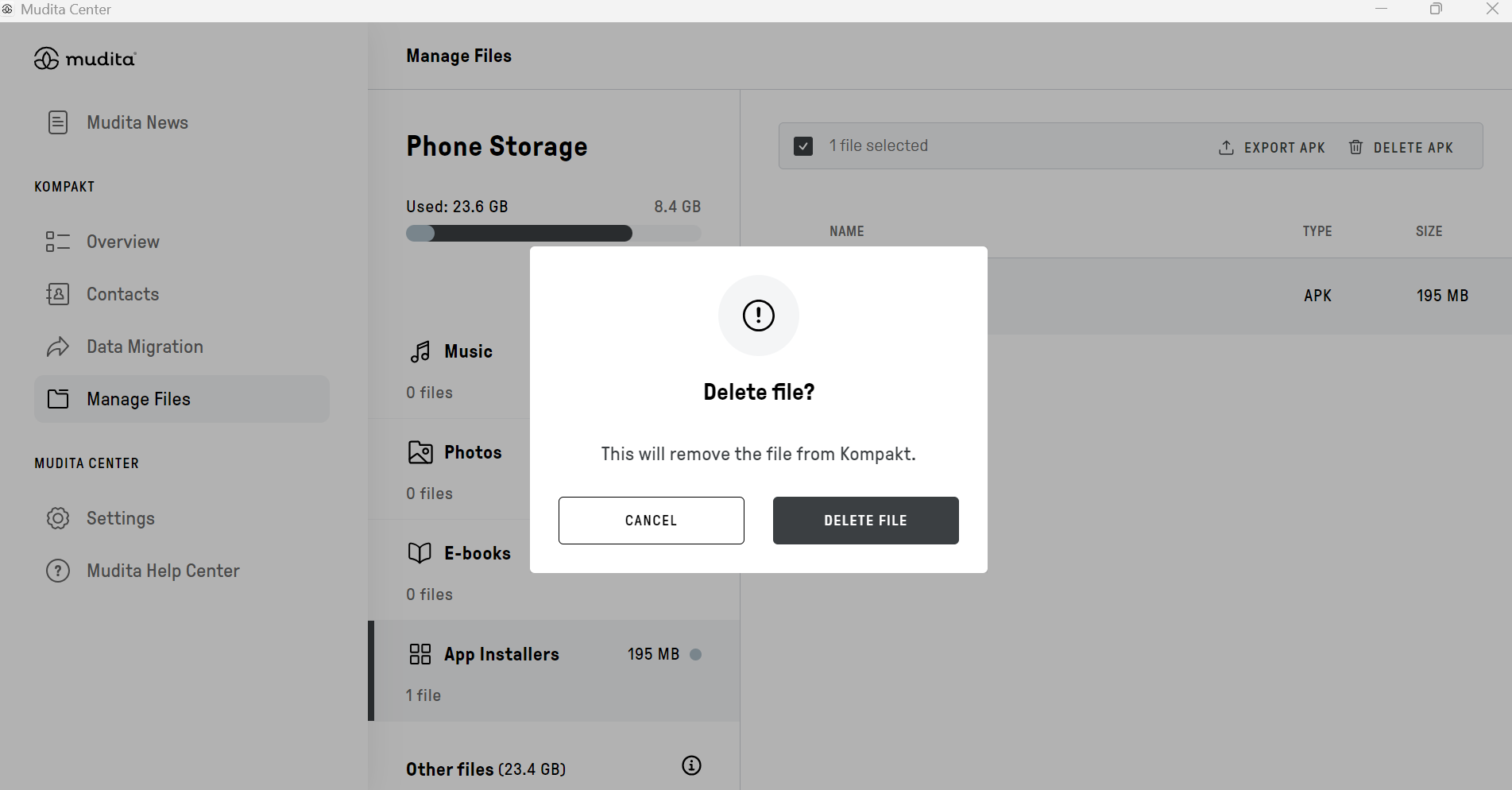
  10. You can safely remove the APK file to save space. Deleting this file does not affect the installed application.
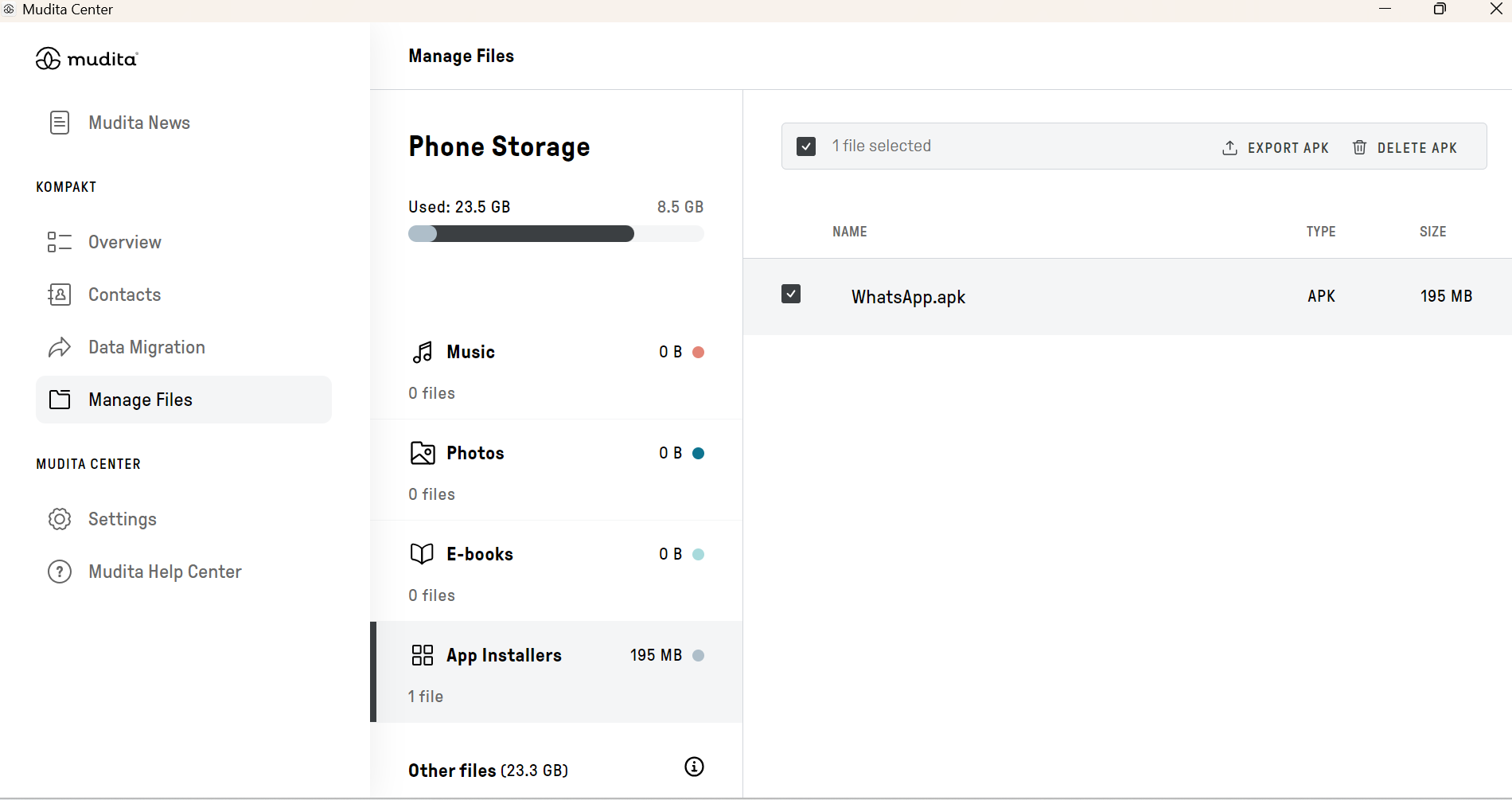
    APK file selected in App Installers, with the Delete APK option at the top
    Delete file confirmation window with the Delete File button

Was this article helpful?

That’s Great!

Thank you for your feedback

Sorry! We couldn't be helpful

Thank you for your feedback

Let us know how can we improve this article!

Select at least one of the reasons
CAPTCHA verification is required.

Feedback sent

We appreciate your effort and will try to fix the article